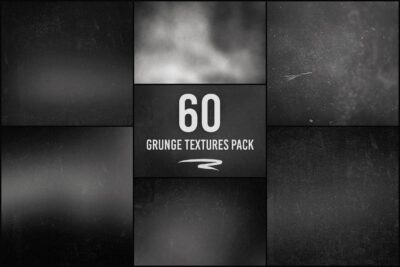
This tutorial will show you how to use Photo Overlays to make photos beautiful (without needing any photography expertise).
Step One: Paste the Overlay
To begin testing, paste some overlay into Photoshop as a new layer. Resize the overlay until it completely covers the image underneath.
Try out different colors, shapes, and compositions until you think you’ve found the right match.
Step Two: Select the Blending Mode
With the layer mask selected, click on the blending mode button and select “Screen.”
Step Three: Edit the Layer
Sometimes an overlay will obscure parts of your image, so a little editing might be necessary.
Step Four: The Finished Product
Your image is complete!
Sometimes it takes a few tries to find the right overlay to go with a photo. Luckily, adding overlays is pretty easy, so you can test out as many overlays and images as you’d like.